

Jenkins
What is Maven and How Does it Work With Jenkins?
Searching “What does Maven do” will leave you with a feeling like you know less. You probably know that Maven has something to do with building Java applications Jenkins… or maybe that it acts as a public repository where artifacts are published. You’re kind of on the right lines, but there’s a little more to it than that.
Good news though, Maven isn’t as complicated as it seems! Once you understand how it works and how Jenkins uses it to automate builds and deployments, it all starts to click. With the right setup, Maven can save your team time and headaches.
In this article, I’ll break down a little more clearly what Maven is, how it works with Jenkins, and how you can publish your Maven projects.
What is Maven and Why Do Teams Pair it With Jenkins?
Maven is a build tool that uses a POM (project object model) to help build processes through plugins. It’s not unlike how MSBuild helps with C#, or MAKE with C/C++, or even npm/Grunt and JavaScript.
A POM is the core of a project’s configuration in Maven. It’s an XML file containing:
- Info about the project
- Configuration details
- Default values for most projects.
Maven helps you keep your Java projects organized—it handles your code, runs build scripts, manages versions, and makes sure everything that depends on something else actually works together.
How Jenkins Works with Maven
Jenkins lets you run Maven and decide when and how it should happen, like which POM file to use, what triggers it, and what to do after. Since Jenkins can listen for all kinds of things (like a svn commit or that the current time is 12:00 AM etc.), it teams up with Maven really well. You can have it kick off a build, run your JUnit tests, and if everything passes, go ahead and deploy—totally hands-off.
Maven projects are then published to a Maven Repository, which is basically like a web-based file share. There are index files in Maven repositories that list what projects and versions are stored in the repository, as well as metadata files that describe what each project is.
Adding Maven to your Jenkins is just as simple as adding any other plugin. Simply install the Maven plugin in Jenkins. This will add a “Build” section to your projects where you can specify exactly what to execute.
What exactly is a Maven Repository?
It really is just a file share with a bunch of files and folders. There are a lot of rules about how the files and folders need to be arranged, and what the contents of certain files (called index files) must look like.
There are a lot of public Maven repositories, the most well-known one being Maven Central. This is public, which means it’s the entire world can freely download anything of the files in it. There’s tons on top of this, hosted by a bunch of different vendors and projects. The website mvnrepository.com is an index of these repositories and allows you to search across 1,350 public repositories.
You definitely don’t want to publish your Maven projects to one of these public repositories. If you did, then it would mean not only a third-party would own/curate your artifacts, but that your proprietary software is out there for the world to see.
Instead, you need a private Maven repository.

Publish to a Private Maven Repository
Storing your Maven projects in a private repository like ProGet removes the access risks that standard Maven repositories have. It also means that you can create feeds separated by project, team, or even by who created it (first-party or third-party.) This enables your team to practice CI/CD best practices and develop faster and higher-quality code.
For this example, we’ll use ProGet. First, download and install ProGet on Windows or Linux. In ProGet click Feeds in the ribbon and set up a Maven Feed.

After selecting Maven Artifacts (found under the Developer Libraries Section) select “Private/Internal Maven Artifacts”. Then enter the feed name.
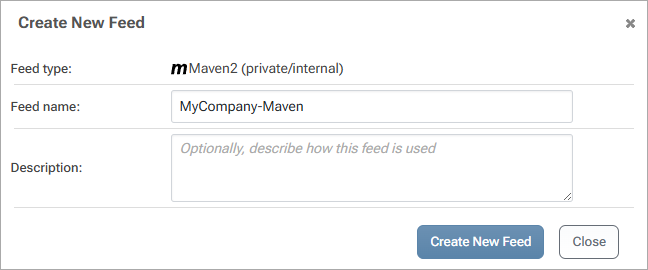
And that’s it! Your private Maven Repository is now set up for your team to start adding artifacts.
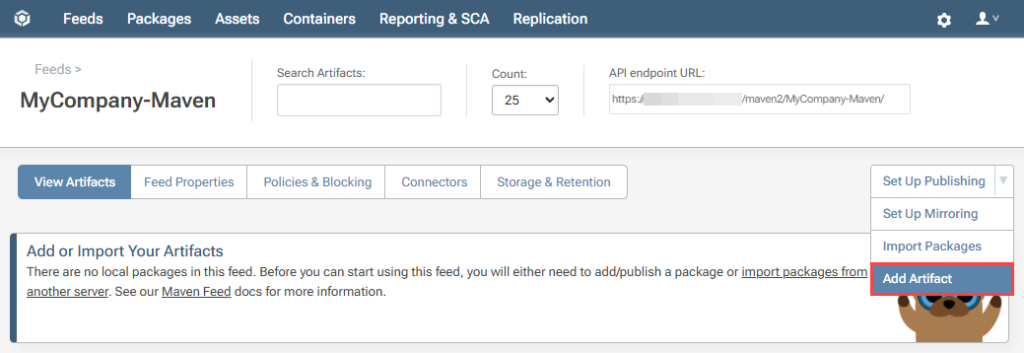
The next steps in Jenkins are to install the ProGet plug-in and add the steps to your Jenkins project. This gives you a “ProGet Upload Package” for Freestyle Jobs and the `uploadProgetPackage` Pipeline step. For a more detailed step-by-step guide, check out the Jenkins ProGet plugin page.
Automate Simply
Maven can be seriously confusing at first—especially when all the docs seem to assume you already know how it works. It’s hard to know where Jenkins fits in, or what a repository even is.
But once you get the hang of it, things fall into place. With Jenkins automating your builds and a private repo like ProGet handling your artifacts, everything just works.Maven is a very powerful build tool that, when combined with Jenkins, can simplify the Java building process. However, when it comes to operating in the enterprise, Maven’s repositories aren’t great.
So yeah, that was a lot, and you’ll definitely want to save this info for later. But if you’re looking for even more, check out our free eBook, Level Up Your CI/CD with Jenkins. It’s loaded with all the highlights from here, plus using Docker in Jenkins CI/CD, provisioning a Jenkins server, and tricks you need to make your Jenkins setup run even smoother!
