

PowerShell
Create Private PowerShell Module Repositories and Gallery Proxies with ProGet
When you rely on a third party to manage your PowerShell modules, you give up control—risking security issues, unexpected updates, and losing the ability to keep proprietary code private. ProGet helps you dodge those risks by putting you in full control, giving you easy self-service with secure, reliable storage.
In this article, we’ll explore how ProGet helps you take back control without limiting self-service, ensures better quality for public PowerShell modules, and guarantees near-constant access to the PowerShell Gallery.
Finally, I’ll walk you through setting up your own private repository in ProGet—in just 15 minutes.
Hosting Private PowerShell Modules
PowerShell modules are great, but managing them? That’s where things can get tricky. Whether you’re dealing with proprietary scripts, security concerns, or just trying to keep everything organized, a private PowerShell repository can make a world of difference.
| PowerShell Gallery | ✘ impossible |
| ProGet | ✓ unlimited private feeds |
💡 Benefit 1: Increase control without limiting self-service with private storage for proprietary PowerShell modules
Using PowerShell modules with ProGet helps keep first-party PowerShell both private and easily accessible for internal use.
Connectors let you aggregate or separate feeds to meet your unique needs. Unlimited PowerShell feeds mean you can keep production-ready and -unready modules clearly separated with feeds like “Validated” and “Private.”
ProGet can enforce access rules on top of separating modules by quality in different feeds. Feed-level privilege controls in ProGet give granular control over per-feed permissions. Make it even easier by integrating with AD/LDAP to use existing teams and roles.
💡 Benefit 2: Ensure better quality for public PowerShell modules
When developers go to the PowerShell Gallery to find a solution to a specific problem, they can inadvertently introduce new problems.
ProGet offers vulnerability scanning to automatically identify package vulnerabilities , categorize their severity and recommend the appropriate response to them (contain, remediate, monitor).
License detection and blocking offer additional peace of mind to avoid the liability and litigation of licenses like GPL-3. License detection and blocking in ProGet read package metadata to alert you of licenses present. Then you can configure ProGet to block (or allow) certain license types, keeping unwanted licenses far away from production (and from the engineers who don’t know to avoid them).
💡 Benefit 3: Unfettered access to the PowerShell Gallery with storage and caching
Proxying the PowerShell Gallery with ProGet gets your developers the packages they need while following organizational rules for security and privacy, and while letting you filter out unacceptable packages.
ProGet can “stand in front of” PowerShell as your proxy to get 100% of the modules you need with 0% direct contact with the site.
And with package and metadata caching, you can avoid developer interruptions. Cache locally to reduce response times and ensure your third-party packages are available even if the Gallery is running slow or goes down.
🚀 Additional Feature for Efficiency and Safety: Promotion
Keep your modules separated by team or by quality without difficult, time-consuming package-sharing. Package promotion copies a package between feeds in just three clicks. What’s more, a package promotion pipeline restricts the ‘promote to’ feed, adding an extra layer of privilege controls. And to further indicate production-ready packages, use repackaging to change its pre-release tag while maintaining package immutability. Exactly what was tested goes to production.

How to Use ProGet for Your PowerShell Modules
In less than 5 minutes, you could already be publishing your PowerShell modules. In this example we’ll show you how to create two feeds:
- An “unapproved” feed that will be populated with public packages directly from PowerShell Gallery
- An “approved” feed which will host private packages, as well as public packages you have approved for use in development.
Not sure how (or why) to create your own PowerShell modules? Check out this tutorial.
Step 1: Install ProGet
Download ProGet, which will install the lightweight Inedo Hub. Depending on your Internet connection, you can have ProGet installed in as little as two minutes. Don’t have a license key? Let ProGet know when you install it, and you’ll be prompted to create one after installation. And don’t worry about extra costs: you can create as many PowerShell feeds as you want in the free-forever version of ProGet.
Step 2: Create New PowerShell Feed
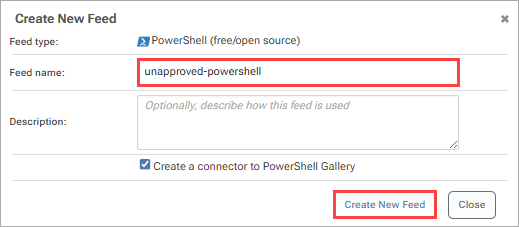
Navigate to “Feeds” and add a new PowerShell feed, selecting “Free/Open Source PowerShell Modules”.

Name this feed “unapproved-powershell” and select “Create New Feed”:
Step 3: Configure “Approved” Feed
From here create a new PowerShell feed, this time without a connector, selecting “Validated/promoted PowerShell Modules”.

Name this feed “approved-powershell” and select “Create New Feed”.
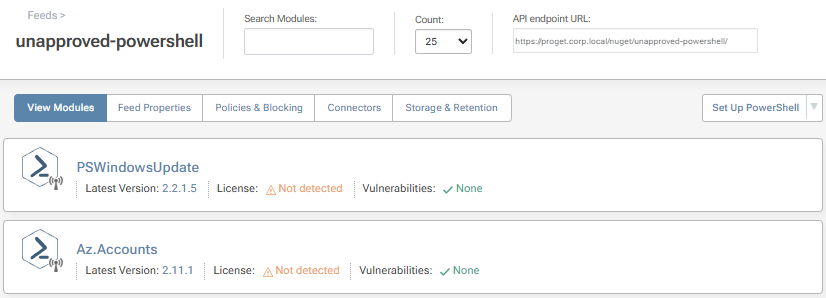
Upon creating the new feeds, You can now use the “approved-powershell” feed to upload your PowerShell modules to your heart’s content.

The “unapproved-powershell” will also be populated with PowerShell modules from the Gallery, appearing in ProGet as if they had been uploaded locally.
Now that you’ve set up ProGet to be your private PowerShell module repository, you can take things one step further by learning how to implement a package approval process to make sure your team is using approved PowerShell Gallery packages. Read our step-by-step guide to learn how to use approved PowerShell Gallery Packages in ProGet.
You might need to return to this article when setting up your private repository, check out or free eBook, the Ultimate PowerShell Level-up Guide, which covers this info, versioning, perfect scripts, and testing!
