

PowerShell
Level Up Your PowerShell with ProGet
Your PowerShell scripts can be working harder for you.
Here’s one thing you can do to instantly get more out of your PowerShell scripts with ProGet for free.
Create your Own Private Repository
In less than 5 minutes, you could already be publishing your PowerShell modules. In this example we’ll show you how to create two feeds:
- An “unapproved” feed that will be populated with public packages directly from PowerShell Gallery
- An “approved” feed which will host private packages, as well as public packages you have approved for use in development.
Not sure how (or why) to create your own PowerShell modules? Check out this tutorial.
Step 1: Install ProGet
Download ProGet, which will install the lightweight Inedo Hub. Depending on your Internet connection, you can have ProGet installed in as little as two minutes. Don’t have a license key? Let ProGet know when you install it, and you’ll be prompted to create one after installation. And don’t worry about extra costs: you can create as many PowerShell feeds as you want in the free-forever version of ProGet.
Step 2: Create New PowerShell Feeds
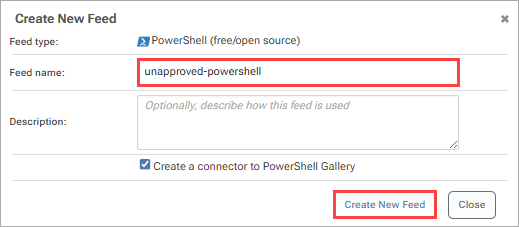
Navigate to “Feeds” and add a new PowerShell feed, selecting “Free/Open Source PowerShell Modules”.

Name this feed “unapproved-powershell”, then select “Create New Feed”.

Step 3: Configure “Approved” Feed
Create a new PowerShell feed choosing “Validated/promoted PowerShell Modules”

Name this feed “approved-powershell” and select “Create New Feed”.
Upon creating the new feeds, You can now use the “approved-powershell” feed to upload your PowerShell modules to your heart’s content.

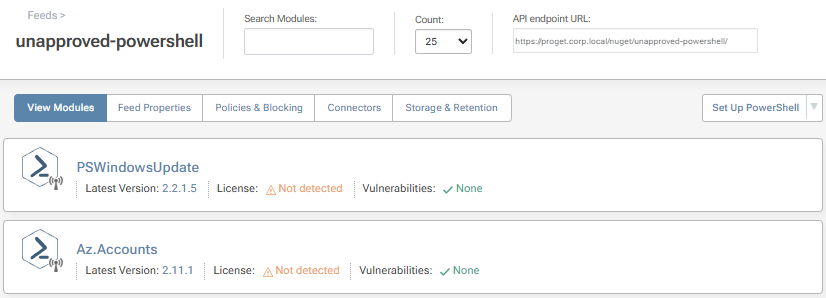
The “unapproved-powershell” will also be populated with PowerShell modules from the Gallery, appearing in ProGet as if they had been uploaded locally.
Now that you’ve set up ProGet to be your private PowerShell module repository, you can take things one step further by learning how to implement a package approval process to make sure your team is using approved PowerShell Gallery packages. Read our step-by-step guide to learn how to use approved PowerShell Gallery Packages in ProGet.
Level Up with ProGet
Using ProGet levels up your PowerShell usage. Increase control without limiting self-service, ensure better quality for public PowerShell modules, and enable unfettered access to the PowerShell Gallery with storage and caching for free with ProGet.
Your PowerShell scripts are industrious and hard-working assets for your company, but you can still be getting more out of them with ProGet and it’s free forever version available to download here. This offers everything your team needs to take your PowerShell experience to the next level.
There’s a lot of info here, so bookmark this article for future reference! Or check out our free eBook, the Ultimate PowerShell Level-up guide, which covers everything here, and has more on creating module manifests, escaping module hell, other PowerShell tools, and creating custom GUIs!
