

NuGet
How to Filter Unwanted Packages from NuGet.org
This article is part of our series on NuGet at Scale, also available as a chapter in our free, downloadable eBook.
Every NuGet package you install pulls someone else’s code into your software, and with it comes risks: vulnerabilities, license issues, bad code. Not just once, but every time it updates. Even a single malicious or compromised update, as has happened in similar cases in other ecosystems, can lead to security breaches, compliance failures, or broken builds—often without you noticing.
The simplest way to manage NuGet risk at scale? Block bad packages at the source. Set a filter once, and automatically stop anything with security risks, incompatible licenses, or poor-quality code; before it ever reaches production. No more rechecking dependencies across dozens (or hundreds) of projects. Just clean, secure code.
This article covers how filters work, how they support a package approval workflow, and how to set them up in ProGet, so you can implicitly allow or block NuGet packages, keeping your builds secure and compliant.
What is a Package Filter?
When managing NuGet packages from external sources—whether that’s public registries like NuGet.org or other third-party feeds—filters help you control which packages are allowed into your projects. This matters because every new package or update carries potential risks—security vulnerabilities, license conflicts, or unstable code—that can quietly slip in and compromise your builds.
Conceptually, a package filter is straightforward: you specify package names (using exact names or wildcards like “*”) and set rules to either allow or block matching packages. These filters let you implicitly allow or block:
- All versions of a specific NuGet package
- All versions of all packages sharing a a certain prefix (for example, all packages starting with your organization’s name)
With filters in place, you can automatically allow NuGet packages from trusted sources, so you don’t have to verify or scan them every time they’re updated. For example, a package like AWSSDK.Core is updated frequently—sometimes twice a week. Without filters, your team risks overlooking a vulnerable or unstable update, or spend a lot of time manually reviewing every version. Filters also help block packages you know are untrustworthy, reducing risks such as dependency confusion attacks that can silently introduce compromised code into your software supply chain.
If your team already uses a manual package approval process, filters make a great complement. Manual approvals explicitly allow or block single versions of packages, whereas filters implicitly apply those decisions across all versions—or entire namespaces—helping prevent risky packages from slipping through with every update.
For instance, you could create a filter to allow all System.* packages, which are part of .NET’s core libraries and regularly updated, or block every version of a deprecated package like StructureMap, preventing its use entirely.

Filters are a powerful way to control what gets into your feed—but they’re most effective when paired with a package approval workflow. Together, they give you stronger control and flexibility—helping you stay ahead of the ongoing risks without the need for constant manual checks.
How Filters Fit Into a Package Approval Workflow
You don’t need a full-on package approval process to start using filters—but having one seriously levels up your protection against all the random risks that come with NuGet packages and their updates. Think of it like a package version of a code review. It could be as chill as a quick “hey, is this cool to use?” or something more official like a team review meeting.
Having a clear workflow makes sure every package your team uses actually meets your quality, security, and licensing standards before it hits production. Plus, there’s less back-and-forth, faster access to approved packages, and no cutting corners on safety.
If your team’s more laid-back or just hasn’t set up a formal process yet, there are basically two ways you can still manage the risk:
- Create a highly-restrictive private NuGet feed that only has packages from trusted prefixes (like
Microsoft.*orSystem.*) - Create a more open feed that only blocks packages from specific sources (like
MyCompany.*or deprecated libraries)
Filters are a powerful tool in this process—but they are not a replacement for a solid package approval workflow. Managing a large number of filters can get messy over time, and since filters apply across all versions of a package, rules may need regular updates as packages evolve.
Used together, filters and a simple approval workflow give you a scalable way to manage ongoing risks—helping you maintain control without adding too much overhead. Tools like ProGet simplify this by making it easy to create and manage filters while integrating them into your team’s approval process.

Setting Up a Connector Filter in ProGet
With ProGet, you can run your own NuGet server and decide exactly which packages get in. One powerful feature? Connector Filters. Here’s how to set one up. First, navigate to your NuGet feed in ProGet and click on “Connectors”.
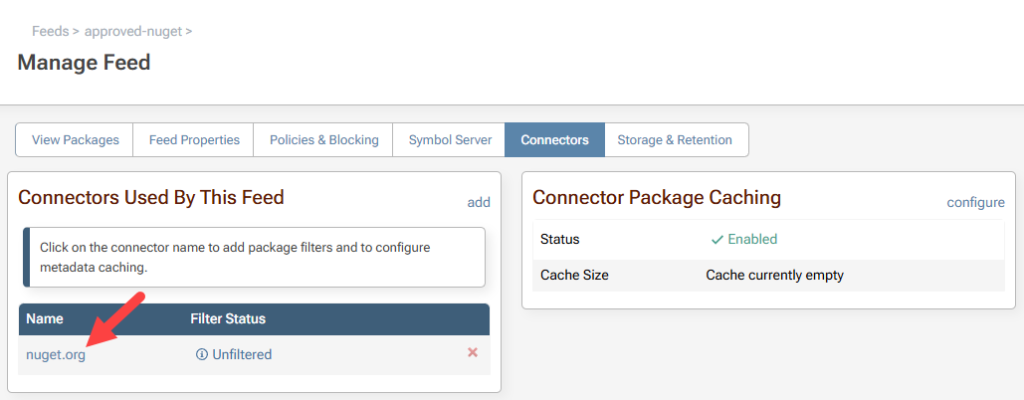
Any current rules this feed may have will be shown at the bottom of this page. To create a new allow/block rule click “Add Filter.”

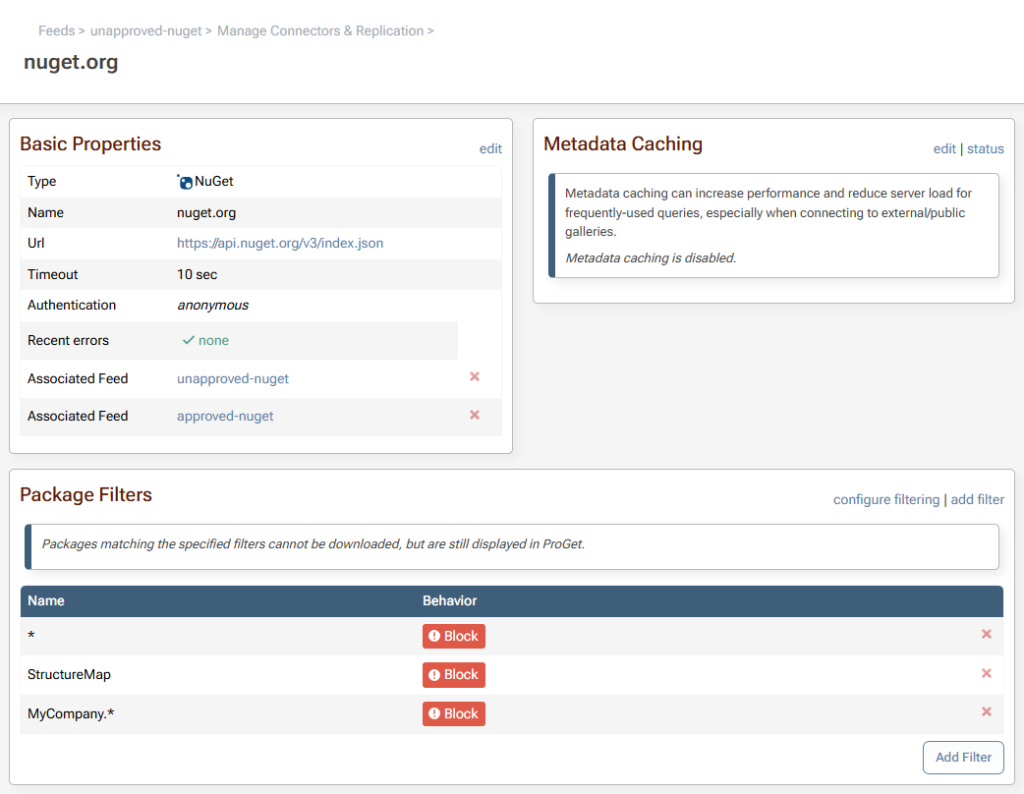
By default, ALL packages are allowed. So, in order to only allow packages, you want you must first create a rule that blocks all packages.

You can also configure what it means when a package is “blocked” by clicking “configure filtering.” In all cases, a blocked package can’t be downloaded, but you can partially hide it (i.e. you can navigate to the package in the UI directly by URL), or totally hide it (you can’t even browse to it).

Filters enable implicit approval so you can implicitly allow or prohibit:
- All versions of a specific package
- All versions of all packages with a certain prefix (i.e. organization)
Using Connector Filters in conjunction with an approval workflow allows you to filter the connector on your “unapproved-nuget” feed with packages that will never be approved (e.g. StructureMap, MyCompany.*).
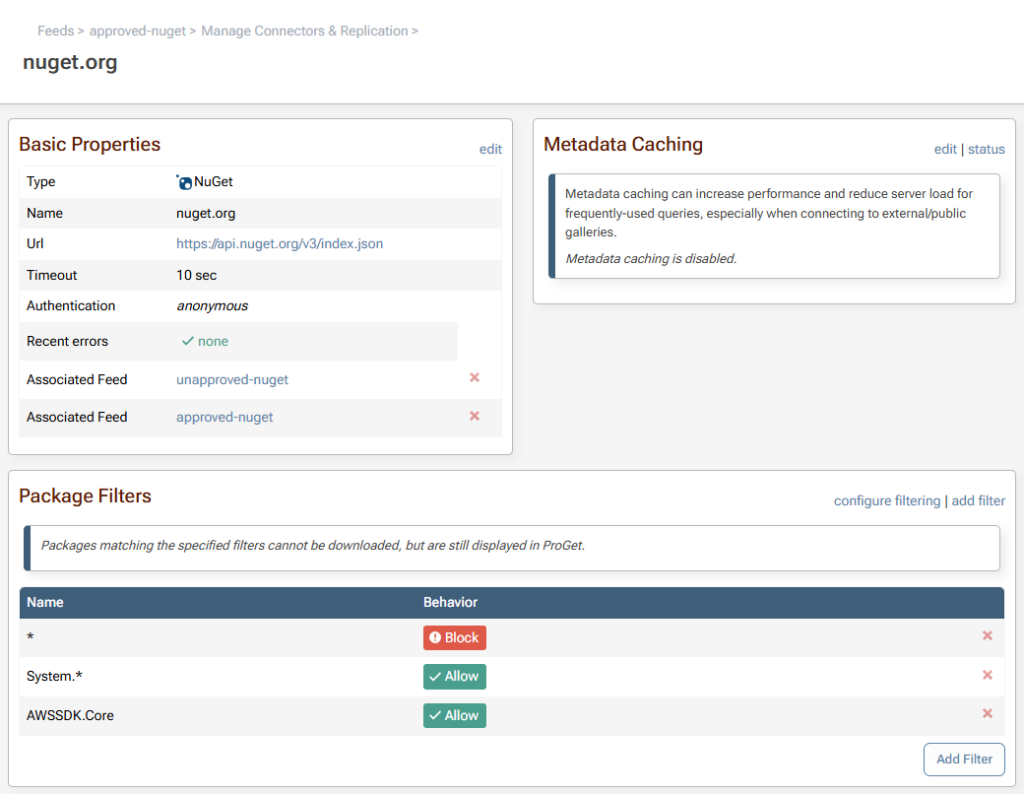
You are also able to add a filtered connector to your “approved-nuget” feed with packages that will always be approved (e.g. System.*, AWSSDK.Core).
Package Filter Best Practices
💡 Block Your Company’s Prefix (e.g. MyCompany.*): All the packages in your organization should start with the name of your company (e.g. MyCompany.*), and that means there should be no legitimate package that starts with “MyCompany.” on NuGet.org.
At best, it could be a mistake. At worst, it might be a dependency confusion attack or another way to get seemingly legit packages snuck into your supply chain.
💡 Don’t Add Rules for Infrequently Updated Packages (e.g. Newtonsoft.Json): Newtonsoft.Json is another package engineers need access to. However, since it’s only updated twice a year, it’s much more reasonable to have it manually reviewed.
💡 Allow Integral Packages That are Frequently Updated (e.g. AWSSDK.Core): AWSSDK.Core is an integral package engineer need access to and is updated up to twice a week. That would be a lot of manual approval. Using a Connector Filter is the perfect way to balance package verification and an approver’s schedule.
💡 Allow Packages with Trusted Prefixes (e.g. System.*): With packages hosted at NuGet.org. Organizations can apply for an ID Prefix Reservation. Once approved, only that organization can publish packages with that prefix. “System.” is reserved by Microsoft, and it refers to a package integral to .NET and therefore can be trusted.
Side Note About Prefixes: Orgs can now reserve an ID prefix, which means only they can use it for their packages once it’s approved. This is a newer thing, though, so there are some older packages that got “grandfathered in” and still use names that technically break the rule. Changing them now would just cause chaos, so NuGet leaves them alone.
For example, System.Linq.Dynamic.Core is by zzzprojects, not Microsoft even though Microsoft now owns the “System” prefix. This could be a good case for implicitly blocking that name.
Filter Your NuGet Stress Away
Relying on open-source NuGet packages means taking on constant, invisible risks, and at scale, even a single mistake can ripple across dozens of applications. What starts as a simple install can quietly open the door to vulnerabilities, license conflicts, or unstable code—especially as packages evolve over time. Without safeguards, it’s far too easy for those risks to creep into your builds unnoticed.
That’s where filters come in. They give you a simple, automated way to control what gets through—blocking problematic packages before they ever become a problem. Combined with a package approval workflow, filters help you maintain secure, compliant, and reliable builds—without the overhead of constant manual reviews. Easily managed with ProGet, filters let your team build securely without slowing down.
I know, that’s a lot of info, so make sure to save it somewhere for future reference. Want more? Check out our eBook, “NuGet at Scale”. It’s full of useful tips on versioning NuGet packages at scale, managing NuGet dependencies with lock files, and so much more! Grab your free copy now!
