

NPM
Auto Assessing npm Package Licenses with ProGet
Managing your project’s npm packages starts out simple. But as it grows, not only do the number of packages grow, but so do their dependencies; each with different licenses that may or may not align with your organization’s policies. Assessing them is tedious and time-consuming, and without clear oversight, it’s easy for things to slip through the cracks and cause compliance headaches.
ProGet can automate license assessments, taking the burden off you and reducing the risk of compliance issues. By setting up an automated assessment process that detects whether an npm package’s license aligns with your organization’s policies you can allow, block, or filter them, reducing the risk of mistakes and keeping package use compliant.
In this article we’ll explore the challenges of manually assessing npm package licenses and why automating the process with ProGet is essential for maintaining compliance.
Challenges of Manual License Reviews
While npm packages are often seen as freely available, they come with legal agreements that dictate how they can be used. The licenses for npm packages can be found in the package.json file:
}
"license": "GPL-3.0"
...
}
They can also be found within an embedded license file:
}
"license": "SEE LICENSE IN <filename>"
}
npm packages can vary widely in quality, security, and licensing, and manually assessing each one takes a lot of time. It’s not only the package itself—it’s all the dependencies, each with their own license, making the vetting process feel pretty overwhelming. As time passes, each check starts to blur together—focus fades, and it gets harder to remember what’s compliant and what’s not, increasing the risk of missing something important.
npm packages often don’t receive the same attention as regular software downloads, which can lead to mistakes. If teams aren’t familiar with company policies or how to handle licenses, it’s easy for things to be overlooked. These open-source packages, which can include licenses like GPL-3.0, can slip through the cracks and lead to compliance issues down the line.
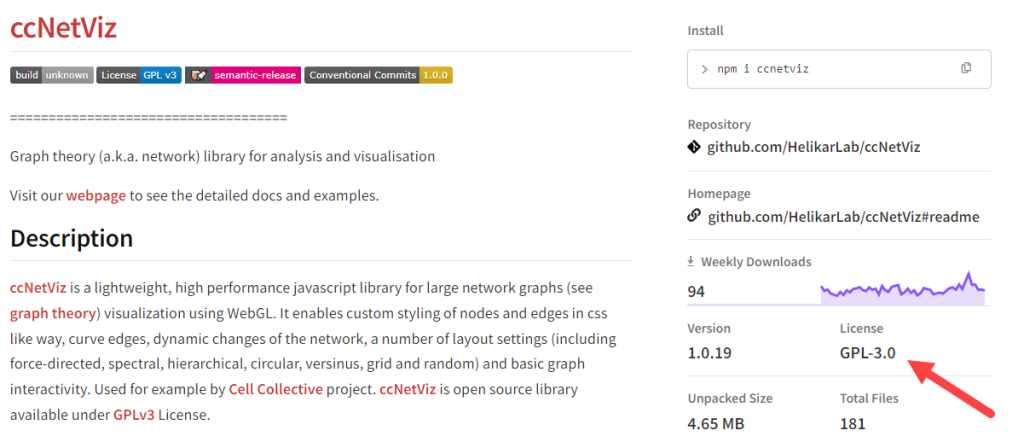
Here’s an example of a “GPL3.0” licensed package from npmjs.org, ccNetViz:
To avoid any mistakes and stay compliant, automating license reviews with ProGet is the way to go. It cuts out the manual effort by letting you approve or reject licenses based on organizational policies, reducing the chance of errors.


Why You Should Automate License Reviews with ProGet
ProGet’s license assessments take the hassle out of manual reviews by automatically detecting package licenses and approving or blocking them based on your organization’s policies. There are typically two ways of doing this:
⭐ Blacklisting is a pretty straightforward way to handle license restrictions—this will allow downloads of all packages except the ones with licenses you specifically want to block. It’s useful when you have a list of certain licenses you want to avoid that have been assessed as non-compliant. Plus, you can just keep updating the list whenever you come across a new or existing license you need to restrict.
To block licenses you want to prohibit, just head over to Global Policies in ProGet and edit license rules in the licenses section. Find the license you want to avoid and block it under the Global Rule setting:

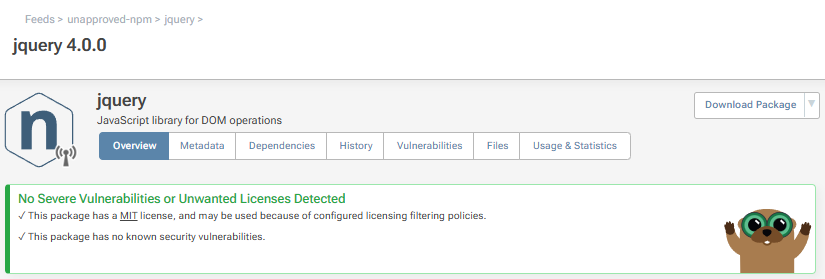
You can confirm the restriction by going to the feeds page, picking an npm feed, and opening a package that uses the blocked license. If you ever need to make an exception, you can override it at the feed level when necessary.

⭐ Whitelisting works by blocking all package downloads by default, only allowing ones with licenses you’ve specifically approved. It’s a solid option for organizations that need to stick to strict licensing policies and want to make sure everything’s fully compliant in production.
To allow only specific licenses, start just as you did with Blacklisting—head to the Global Policies page and edit license rules in the licenses section. You’ll want to start by blocking all licenses by default under the general Global Rule setting.

From there, you can manually allow the ones you want to permit by finding them in the licenses page and allowing them under the Global Rule setting.

You can verify the approval just like you did for blocking—go to the feeds page, choose an npm feed, and open a package that uses the approved license. If you need to make an exception down the line, you can always override it at the feed level when necessary.
ProGet’s ability to automate license checks offers a faster, more reliable way to prevent oversight and reduce risks. By customizing rules to align with your organization’s policies, you can ensure compliance throughout your development process.
Automate License Reviews and Avoid Compliance Issues
Because npm packages differ greatly in quality, security, and licensing, manually assessing licenses for every package and its dependencies can lead to oversight, mistakes, and compliance issues.
Automating license assessments in ProGet helps you avoid these problems by automatically allowing or blocking packages based on their licenses, ensuring alignment with your organization’s policies and maintaining compliance.
Phew, that’s a lot to take in for today! Keep this article handy for future reference, or check out our free eBook, npm in the Enterprise. You’ll learn more about npm versioning, but also about dependencies, scoping, vulnerabilities, licenses, auditing, and much more!
