

ProGet Migration
How to Self Manage Your ProGet Instance for Artifactory Users
This article is part of a series on Migrating from Artifactory to ProGet, also available as an eBook.
Artifactory and ProGet are both self-managed instances that can be installed on either Windows or Linux. If you’re migrating from Artifactory to ProGet, the first step is getting your ProGet instance up and running.
Setting up ProGet involves a straightforward Windows installation. All of ProGet’s features are included in a single installation, with no need to install any additional “add-ons”.
In this article we’ll show you how to set-up ProGet either as a single node or High Availability installation to migrate from your Artifactory instance. We’ll also look at how to upgrade your instance and roll back whenever you need to.
Setting up ProGet on a Single Server
Even though ProGet is rated faster and more efficient than Artifactory, a good rule of thumb is to use the same hardware specs as your Artifactory instance to start with. You can always downgrade later.
The easiest way to set up ProGet is to install it using InedoHub in Windows, a lightweight installer for all Inedo products:

You can download this from MyInedo, which includes links to system requirements and other ProGet documentation.
Alternatively, you can also install ProGet on Linux as a Docker Image. If you’re running Infrastructure as Code or want script-based installations, there’s also a Silent installation option available.
Like Artifactory, ProGet can be installed as either Single Node or High Availability. Once installed, ProGet includes an onboarding wizard to guide you through setting up your instance:

You can also read our ProGet documentation, which includes guides and video walkthroughs.
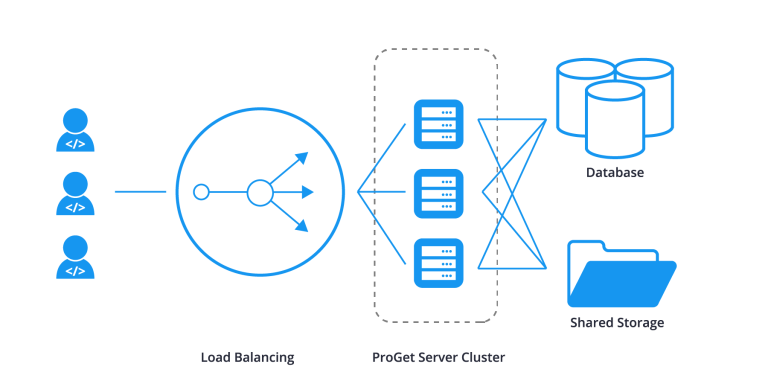
Setting Up ProGet on High Availability Cluster with Load Balancing
If you’re setting up ProGet For High Availability, the configuration is very similar to single node installation.
High Availability installation will require the following components to be configured:
⚙ Load Balancer
⚙ Shared Storage
⚙ Shared Database
⚙ Inedo Product (Encryption Key & Settings)
Maintaining your ProGet instance
Once you’ve got everything up and running, you’ll want to make sure your ProGet instance continues to run smoothly, which will involve upgrading and occasionally rolling back if need be.
Upgrading ProGet
If you installed ProGet via InedoHub in Windows, upgrading is easily done through InedoHub’s UI:

When upgrading there’s no need to manually download any update files, or stop and restart the server. InedoHub will automatically take care of this for you.
If you installed your ProGet instance through Linux or Docker, then upgrading can be done easily through a script.
Rolling back and/or Downgrading
Like updating, ProGet can be easily rolled back through InedoHub:

ProGet will automatically retain all the data needed to rollbacks or downgrade, and won’t require any data dumps on hand like in Artifactory.
Get ProGet Up and Running in Minutes
Getting started with ProGet is easy when moving across from Artifactory, and can be set up easily in Windows via InedoHub or Linux with Docker as either Single Node or High Availability.
Once installed upgrading and rolling back can be easily performed using either InedoHub or Docker.
This article is part of our eBook on Migrating from Artifactory to ProGet, walking you through everything from setting up repositories to managing your vulnerabilities, licenses and much more. Download your free copy of “Migrating from Artifactory to ProGet” today!
